This data center hub collects every virtualization lab on the site into one structured pathway. First, you install ESXi on bare metal. Then, you add vCenter, shared iSCSI storage and, finally, a clustered production-style architecture. In addition, each guide is field-tested on real home lab hardware, because untested steps waste your evening.
vcsa-01.huda.labACTIVE
# hypervisor hosts
esxi-node-0110GbE UP
esxi-node-0210GbE UP
# shared storage target
truenas-san-01iSCSI LUN
dvs-switch-01 · MTU 9000 (Jumbo)vDS
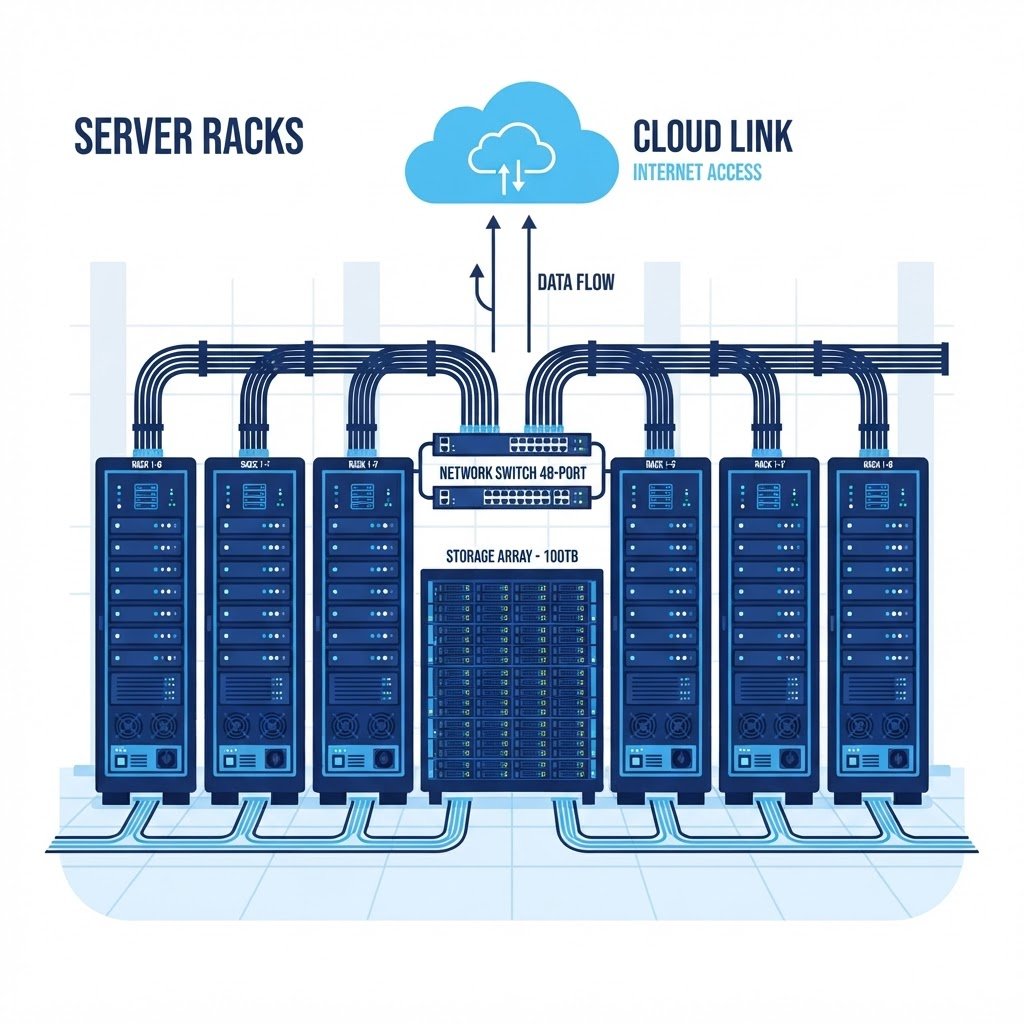
Curated VMware Data Center Learning Tracks
These four phases guide your progression from a single spare workstation to a resilient, enterprise-style data center cluster. First, you provision the hypervisor. Then, you centralize management. Next, you attach reliable shared storage. Finally, you add clustering for high availability, so your VMs survive a host failure.
01 · PHASE4 guides
Bare Metal & Provisioning
Install ESXi on physical hardware: BIOS virtualization flags, static IPv4 networking and a bootable USB installer.
- check_circle Rufus ESXi USB installer
- verified DCUI console configuration
- task_alt Host web client login
Explore Phase 1 →
02 · PHASE2 guides
Enterprise Management
Deploy the vCenter Server Appliance so one console manages every host, VM and template in your data center.
- check_circle VCSA stage 1 & stage 2 setup
- verified vMotion between hosts
- task_alt Central inventory & templates
Explore Phase 2 →
03 · PHASE3 guides
Storage & Resiliency
Build a TrueNAS VM, expose iSCSI LUNS over 10GbE and provision VMFS datastores for shared storage.
- check_circle TrueNAS iSCSI target
- verified VMFS-6 datastore creation
- task_alt Software iSCSI adapter binding
Explore Phase 3 →
04 · PHASE4 guides
Advanced Clustering
Move workloads without downtime: vMotion, HA heartbeat datastores and multi-host resource balancing.
- check_circle vMotion kernel port tuning
- verified Heartbeat datastores for HA
- task_alt VMware Tools in every guest
Explore Phase 4 →
Data Center & ESXi Tutorial Grid
Every guide below was written after the lab actually ran. For example, the storage tutorials reuse the NAS you build in Phase 3, so nothing depends on hardware you do not have yet. Besides that, you can filter by topic, or you can simply follow the phases above in order. However, if you are brand new, begin with the ESXi install guide.
How to Install ESXi Server
First, install the bare-metal hypervisor with BIOS settings, a Rufus USB stick and the DCUI console.
Open this lab →
Host Access
Connect to ESXi from a Client Machine
Then, reach the host web client from any workstation and manage the host remotely.
Open this lab →
Guest Tools
Install VMware Tools in a Guest VM
Also, add quiesced snapshots, accurate timing and fast video drivers to every guest.
Open this lab →
VM Provisioning
Create Virtual Machines in ESXi
Next, choose CPU, RAM and disk controllers that match real production builds.
Open this lab →
Guest OS Setup
Install an OS in an ESXi VM
After that, attach ISO datastores and complete a clean guest installation.
Open this lab →
VCSA Deploy
Install vCenter Server Appliance at Home
Deploy VCSA 8 in two stages, so one console manages your whole data center.
Open this lab →
vMotion Lab
Migrate a VM Between Hosts (vMotion)
Then, move a running VM with zero downtime once the kernel port is sized right.
Open this lab →
NAS & iSCSI
Create a Virtual NAS Device (TrueNAS)
Next, run TrueNAS in a VM and serve iSCSI storage to your ESXi hosts.
Open this lab →
Datastore Lab
Create a Datastore in ESXi
Because storage decisions matter early, local and shared datastores are both explained here.
Open this lab →
VMFS Deep Dive
Create a VMFS Datastore
Finally, make VMFS-6 signatures, alignment and resignature rules practical.
Open this lab →
vSwitch Fabric
Manage Virtual Networks in ESXi
First, build vSwitches, port groups and uplink policies for a clean fabric.
Open this lab →
VM Networking
Move VMs Between Networks
Then, re-point NICs across port groups without breaking IP addressing.
Open this lab →
Masterclass
Build a Home Lab for Cloud & Virtualization
In addition, the flagship guide ties every phase above into one budget plan.
Open this lab →
Build a Physical ESXi Virtualization Server at Home
Start here: hardware choice, ESXi install, VCSA, iSCSI storage and cluster validation, all in one budget-aware plan. Because the plan grows with you, it later becomes the data center architecture above. In addition, every command is copy-paste ready.
Homelab Data Center Hardware Blueprints
You do not need enterprise budgets to run this stack. These four builds were tested in the lab, and each tier runs the tutorials above comfortably. For example, the budget mini node already handles Phase 1 and Phase 2, while the 1U rack server mirrors a real server room. Also, all four nodes support MTU 9000 jumbo frames. Before you buy, run the homelab hardware calculator to size the build for your exact VM count.
Budget Mini Node
A Lenovo M720q Tiny or HP EliteDesk 800 G4 runs ESXi with one VMFS datastore.
- memory 32 GB DDR4
- database NVMe boot plus SATA data
- bolt 35W idle power
Compact Cluster Node
The Minisforum MS-01 pairs dual 10GbE SFP+ ports with a 13th-gen Intel CPU.
- memory 96 GB DDR5
- hard_drive 3x NVMe bays
- bolt Dual 10G SFP+
Enterprise 1U Rack Server
A used dual-Xeon or EPYC 1U with redundant IPMI mirrors a real server room.
- memory 128 GB ECC
- hard_drive Hardware RAID HBA
- bolt Redundant PSU and fans
Core 10G Switching
The MikroTik CRS305 fanless SFP+ switch carries iSCSI and vMotion traffic.
- settings_ethernet 4x SFP+ ports
- ac_unit Silent passive cooling
- bolt MTU 9000 jumbo frames
Watch the Data Center Labs on YouTube
Every cluster build in this hub has a companion video walkthrough. For example, the vCenter deployment video mirrors the Phase 2 guide step by step. In addition, new ESXi and vCenter demos are published each month, so the playlist grows with the hub.
Official Documentation
Data Center & ESXi Questions
Do I need multiple servers to follow this data center hub?
No, you do not. Phase 1 and Phase 2 run on a single machine. Then, when you add a second host later, the vMotion and clustering tutorials in Phase 4 work without rework.
Can a home lab really run vCenter Server Appliance?
Yes, it can. Because VCSA needs about 12 GB of RAM for a small deployment, any 32 GB host runs it comfortably alongside several VMs.
Is TrueNAS a good shared storage choice for ESXi?
Yes, it is. TrueNAS exposes iSCSI LUNs and NFS exports, and both protocols connect to ESXi as datastores. In addition, snapshots protect your VMs before risky changes, so recovery takes seconds.
Which guide should I start with?
Begin with the ESXi installation guide, because every later tutorial assumes a working host. After that, follow the four phases on this hub in order. Finally, bookmark this page so you can track your progress.
In short, treat this hub as the master index for your virtualization journey. Each phase links to guides that build on the previous one, while the hardware blueprints keep the budget realistic. For example, a single $350 node starts the journey today. Finally, subscribe on YouTube, because new data center labs are published as they are filmed.
Generate Configs and Plan Your Exams
Script and Config Generator
Build Netplan YAML, PowerShell scripts, kickstart files and CloudFormation for this hub’s labs.
Certification Roadmap
Map these labs to the matching exam blueprint, then track readiness before you book.
Hardware Benchmark Matrix
Compare CPU scores, RAM ceilings, idle power and price per point before you buy.
Technology Topic Directory
Then, search every published guide by keyword, pillar and level from one page.