To install an OS in an ESXi VM you attach an ISO image to the virtual CD drive, boot the VM and step through the installer. Then, once the guest is running, you add VMware Tools to finish the job.
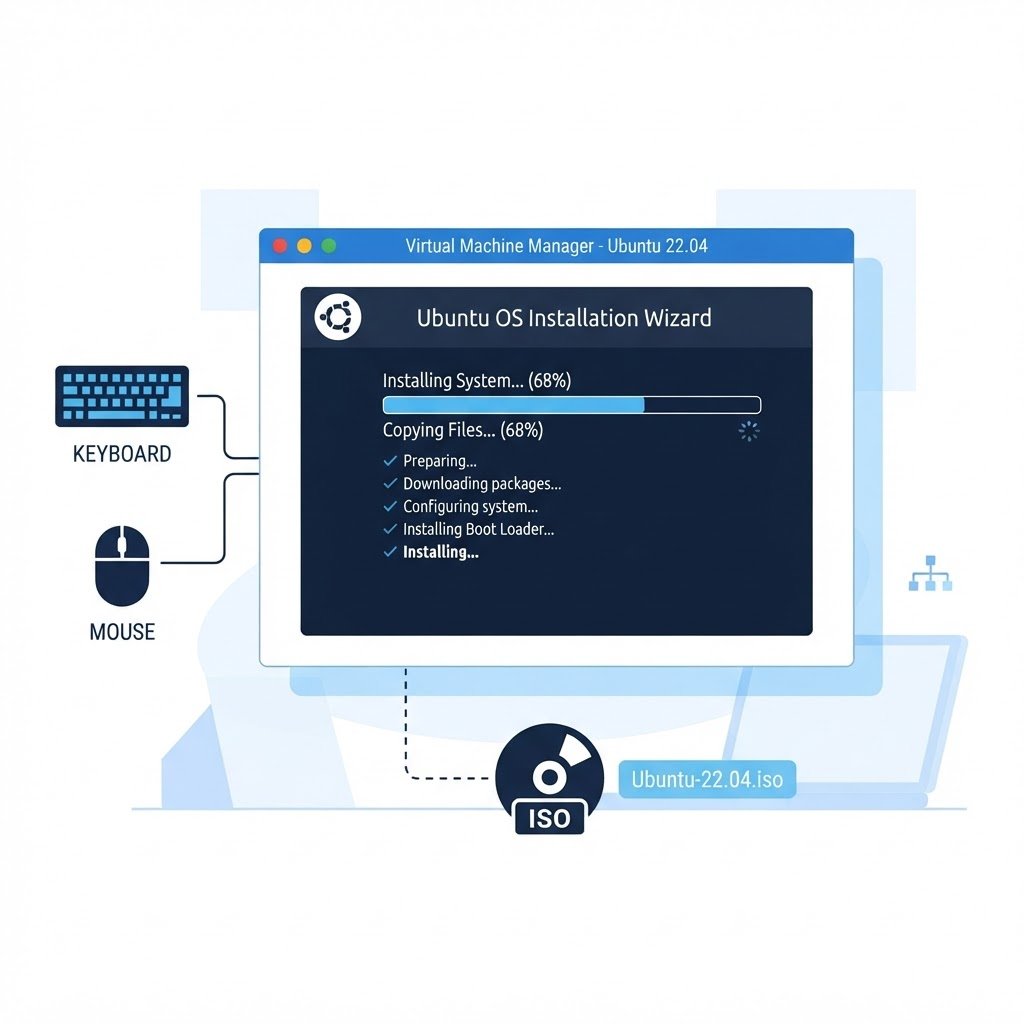
After creating a virtual machine, the next step is installing a guest operating system into it. On ESXi the standard way is to boot the VM from an ISO image stored on a datastore, exactly like booting a physical server from a DVD.
dns LAB TOPOLOGY & PREREQUISITES
# example values used while writing and testing this guide
GUEST SPECS
MEDIA
POST-INSTALL
01constructionStep 1: Upload the ISO
Download the installation ISO you need — for example Windows Server 2019 or Ubuntu Server. In the ESXi Host Client, open the datastore you created in the datastore guide, click Datastore browser, create a folder called ISO, and upload the file. ISOs of a few GB take a few minutes depending on your network.
02downloadStep 2: Attach the ISO to the VM
Open the VM’s Edit Settings, set the CD/DVD drive to Datastore ISO file, browse to the ISO, and check Connect at power on. While you are there, confirm the boot order puts CD before the (empty) hard disk. After you install OS in ESXi VM guests a few times, the checklist becomes second nature.
03usbStep 3: Boot and Install
Power on the VM and open the console. The installer boots just like on physical hardware:
- Windows Server: choose edition, custom install to the virtual disk, and after setup set the admin password — the full walkthrough is in How to Install Windows Server
- Ubuntu: pick language, install with the guided disk option, create your user — see the Ubuntu installation guide
04terminalStep 4: Post-Install Checklist for the OS in ESXi VM
- Install VMware Tools (open-vm-tools on Linux) for drivers and clean shutdowns
- Detach the ISO and reconnect the CD drive or the VM may boot the installer again
- Set a static IP or note the DHCP address so you can reach the machine over SSH/RDP
Then repeat the process to build a small fleet: two machines on the same network are all you need to start practicing real infrastructure.
Watch: How to Create VM and Install Guest OS in ESXi Server Environment
Because some steps are easier to copy from video, this companion walkthrough mirrors the lab above. Also, the chapter pills follow the same order as the steps.
Q&AquizFrequently Asked Questions About Installing an OS in an ESXi VM
Which ISO should I start with?
Ubuntu Server is the easiest because it installs quickly and costs nothing. After that, try the Windows Server evaluation ISO, as described in the Windows Server guide.
Why does my VM boot the installer again?
Because the CD drive is still set to connect at power on. Therefore, after setup finishes, disconnect the ISO in the VM settings.
How do I get files into the guest?
Use the datastore browser for ISOs, or install Tools and use SSH and RDP afterwards. Both routes beat the slow HTML5 console.
Do snapshots replace backups?
No. Snapshots help for quick restores, but real backups should live outside the host. In addition, keep your ISO library organized so you can rebuild a lab fast.
EXTopen_in_newExternal Resources
These official guides go deeper on installing an OS in an ESXi VM.
Related Content
- How to Create Virtual Machines in ESXi Server
- How to Install VMware Tools in an ESXi Guest
- How to Create a Datastore in ESXi Server
Install vCenter Server Appliance at Home
The install track is complete. Next, deploy vCenter and unlock central management for the whole lab.