When you create a VMFS datastore in ESXi, you carve out dedicated storage that virtual machines can boot from, and the process takes just a few clicks. However, a few choices along the way are worth understanding first.
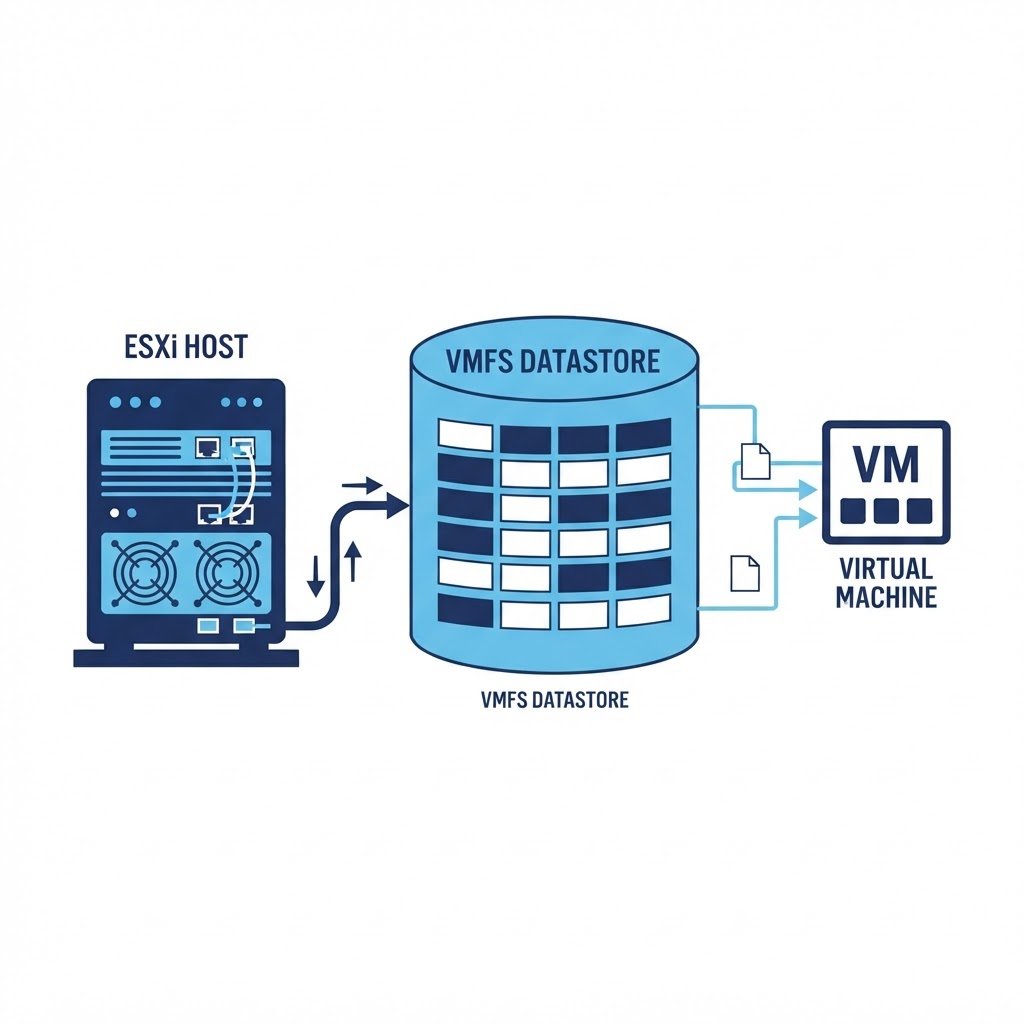
A datastore is the storage container where ESXi keeps virtual machine files: the VM’s disk (VMDK), configuration (VMX), NVRAM and log files. Datastores on block devices use the VMFS file system, VMware’s cluster-aware file system designed for concurrent access by multiple hosts.
dns LAB TOPOLOGY & PREREQUISITES
# example values used while writing and testing this guide
LUN SPECS
HOST SIDE
DATASTORE
01constructionWhen You Need This
- You installed ESXi on a small disk and now want to use a second, larger disk for VMs
- You attached new local disks, an iSCSI LUN or an NFS share
- You want to convert a raw disk with an old partition table into usable VM storage
02downloadStep 1: Open the Storage View
Log in to the ESXi Host Client, go to Storage in the left menu and click Add datastore or the New datastore wizard. Rescan storage adapters first so the new disk appears in the device list. Before you create VMFS datastore volumes on shared LUNs, check the host sees the device.
03usbStep 2: Choose the Disk and Layout
Pick Create a new VMFS datastore, select the device you want, and choose the partition layout: use the full disk, or custom partitions if the disk is shared. The wizard shows the disk’s size and any existing partitions (existing data will be destroyed, so double-check the device name).
04terminalStep 3: Set the VMFS Datastore Version and Name
Choose VMFS 6 (the current version, with automatic space reclamation and better journaling), give the datastore a clear name such as datastore-ssd1 and review the summary. Click Finish and wait for the format to complete.
05settings_ethernetStep 4: Verify and Use It
The new datastore appears under Storage with its free capacity. Use it when creating VMs, for ISO uploads (create an ISO folder via the datastore browser and upload your installation media), or move existing VMs to it with Storage vMotion or cold migration. In clusters, keep in mind that a VMFS datastore shared across hosts is the prerequisite for vMotion.
Watch: How to Create a VMFS Datastore in ESXi Server at Home
Because some steps are easier to copy from video, this companion walkthrough mirrors the lab above. Also, the chapter pills follow the same order as the steps.
Q&AquizFrequently Asked Questions About Creating a VMFS Datastore
What is a VMFS datastore exactly?
It is a disk or LUN formatted with VMware’s VMFS file system so ESXi can store virtual machines. Without it, the host has nowhere to put VM files.
Can I use NTFS or ext4 instead?
No. ESXi only reads VMFS for block storage. However, it can mount NFS shares as an alternative, which the virtual NAS guide demonstrates.
Should I choose VMFS 5 or VMFS 6?
Choose VMFS 6 on current hardware, because it adds automatic space reclamation and better journaling. VMFS 5 only matters for very old hosts.
Why does my disk not appear in the wizard?
Usually the disk is already in use or the device is unsupported. First rescan the adapters, then check that the disk has no existing datastore signature.
EXTopen_in_newExternal Resources
These official guides go deeper on creating a VMFS datastore.
Related Content
- How to Create a Datastore in ESXi Server
- How to Create Virtual Machines in ESXi Server
- How to Install vCenter Server Appliance
Manage Virtual Networks in ESXi
The storage track is complete. Next, build clean vSwitches and port groups for the whole fabric.