This guide shows how to move VM between networks in ESXi without breaking the guest. Moving a virtual machine from one network to another is a common lab and production task — isolating a machine, moving it to a DMZ, or reconnecting it after a network redesign. In ESXi this is done by changing which port group the VM’s network adapter is attached to.
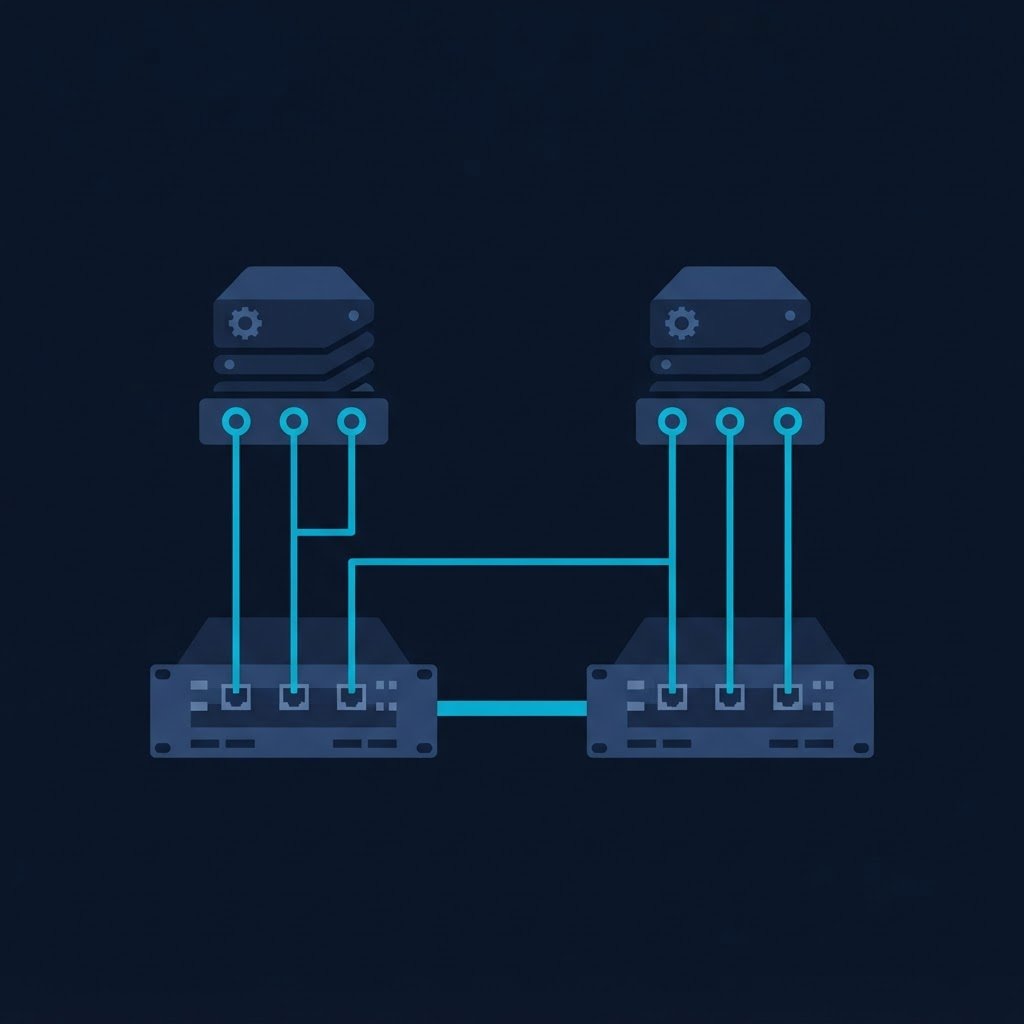
dns LAB TOPOLOGY & PREREQUISITES
# example values used while writing and testing this guide
VM SPECS
NETWORKS
VERIFY
01constructionStep 1: Have the Target Network Ready
First check in Networking → Port groups that a port group exists for the target network (create one if needed, as described in managing virtual networks in ESXi). Note its VLAN ID and whether it has DHCP service behind it.
02downloadStep 2: Edit the VM’s Network Adapter
Shut the guest down gracefully (or edit while powered off), open the VM’s Edit Settings, expand the network adapter and change the Network label from the current port group to the target one. Power the VM back on. Because you move VM between networks rarely, the verify step at the end matters most.
03usbStep 3: Refresh the Guest IP After You Move VM Between Networks
- DHCP guest: inside the OS release and renew:
ipconfig /releasethenipconfig /renewon Windows, or restart networking on Linux - Static IP guest: update the address, subnet, gateway and DNS to match the new network’s plan, otherwise the VM keeps an address that does not work on the new segment
04terminalStep 4: Verify
From the guest, ping the new gateway, then another machine on the same segment, for example the second VM you put on the same network. In the VM’s Summary tab confirm the port group name updated. If ping fails, check the VLAN ID, the physical switch config, and the guest firewall (Windows blocks ICMP by default).
05settings_ethernetMoving Many VMs at Once
With vCenter you can multi-select VMs and reassign networks in bulk, or automate with PowerCLI: Get-VM web01 | Get-NetworkAdapter | Set-NetworkAdapter -Portgroup "Lab-DMZ". This pairs well with connecting a VM to the data network exercises.
Related Content
Build a Home Lab for Cloud & Virtualization
The networking track is done. Next, the masterclass ties every lab into one budget build plan.