Creating a virtual machine is the whole point of a hypervisor. On ESXi you do it with the New Virtual Machine wizard in the Host Client, and the process takes just a few minutes once your host is installed and you have a datastore with space.
dns LAB TOPOLOGY & PREREQUISITES
# example values used while writing and testing this guide
VM SPECS
NETWORK
INSTALL PLAN
01constructionStep 1: Start the Virtual Machine Wizard
In the ESXi Host Client, right-click your host or a folder and choose New Virtual Machine. Give the VM a clear name (for example dc01 for a domain controller) and choose the datastore where its files will live.
02downloadStep 2: Pick the Guest OS
Select the family and version — for example Microsoft Windows Server 2019 or Linux, Ubuntu 64-bit. ESXi then offers sensible defaults for the hardware. Once you create virtual machines in ESXi a few times, the wizard takes under two minutes.
03usbStep 3: Configure the Hardware
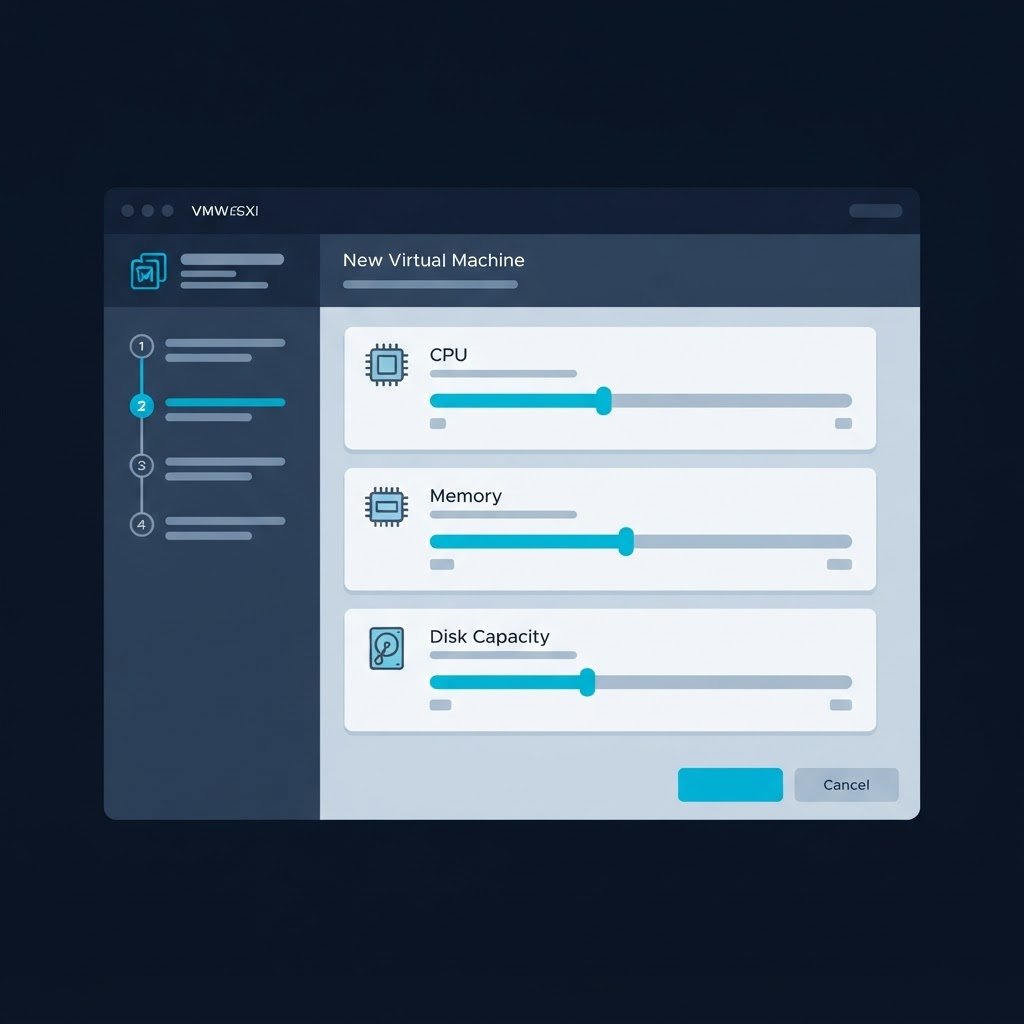
- CPU: 1-2 vCPUs for lab machines
- Memory: 2-4 GB is plenty for most lab servers
- Hard disk: 60-100 GB thin provisioned (thin saves space on your datastore)
- Network: attach to a VM network on your virtual switch; add a second adapter if the machine needs separate networks
- CD/DVD: point at an ISO file in the datastore or the client device for installation media
04terminalStep 4: Power On and Install the OS
Check Power on after creation if you like, then finish the wizard. The VM boots from the ISO and you install the operating system through the console just like on a physical machine. After the OS is installed, always finish with VMware Tools.
05settings_ethernetCommon Next Steps
Once the VM runs, practice the rest of the life cycle: connect two machines on the same network, move them to another network, take snapshots before risky changes, and clone from templates once vCenter is in place.
Related Content
Install an OS in an ESXi VM
Your VM shell exists, so the next lab installs the guest operating system. Then the lab starts to feel real.