You can install Exchange Server 2019 on Windows Server in an afternoon, and the lab steps here mirror what admins do in production. However, Exchange has strict prerequisites, so read the requirements first.
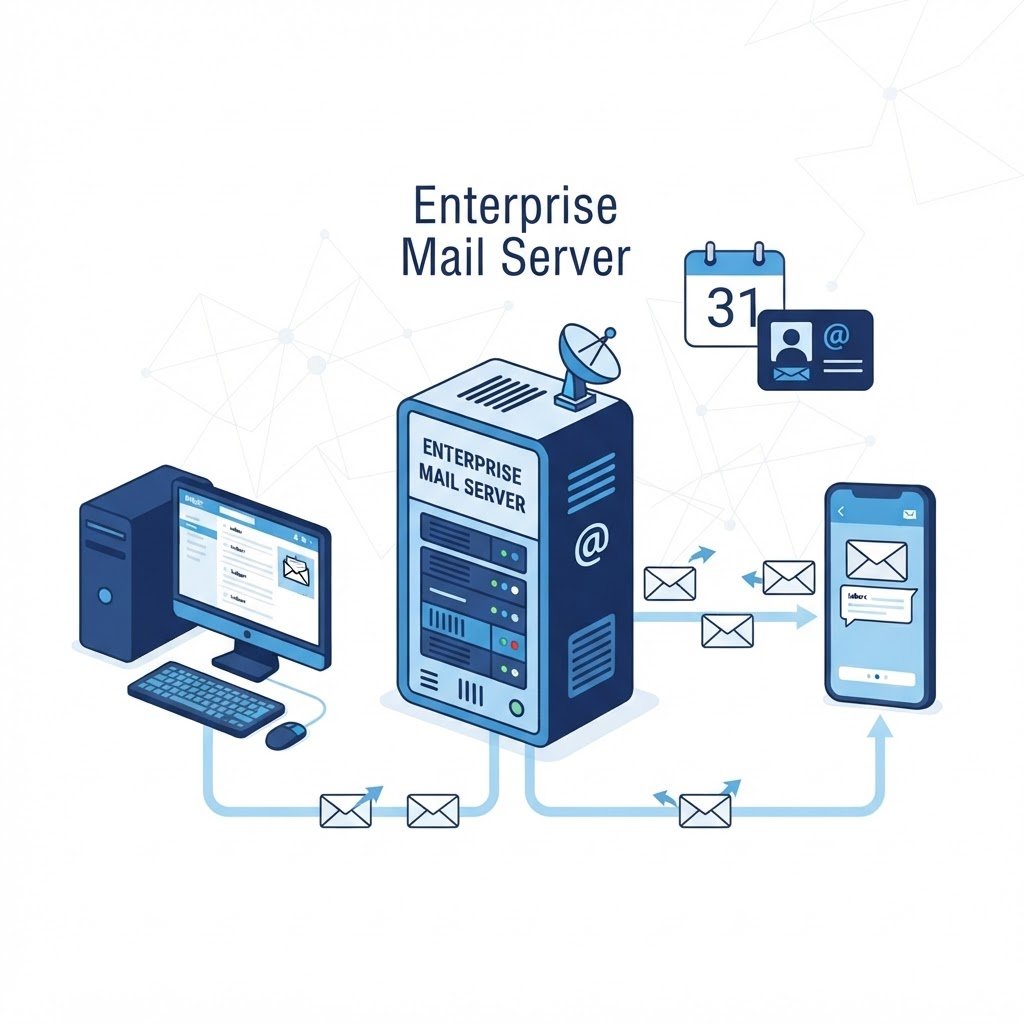
Microsoft Exchange Server is the enterprise mail platform for Windows environments: it delivers mailboxes, calendars, contacts and webmail (Outlook Web App) tightly integrated with Active Directory. Exchange 2019 runs on Windows Server 2019/2022 and is a substantial but rewarding lab project — this guide walks the whole path.
dns LAB TOPOLOGY & PREREQUISITES
# example values used while writing and testing this guide
LAB VM
WINDOWS BUILD
VALIDATION
01constructionInstall Exchange Server: Prerequisites
- A working Active Directory domain with a domain controller and healthy DNS
- A member server (not a DC) with Windows Server 2019+, 8+ GB RAM recommended, joined to the domain
- Exchange 2019 installation media and a trial/product key
- The required Windows features and Visual C++/IIS URL Rewrite prerequisites installed
- AD schema extension rights (Enterprise Admins) — schema prep is part of setup
02downloadStep 1: Prepare Active Directory
From an elevated prompt on the Exchange server (or the ISO’s PrepareAD flow), extend the schema and prepare AD: the setup GUI does this automatically for a single-server lab, or run unattended prep: Setup.exe /PrepareAD /IAcceptExchangeServerLicenseTerms_DiagnosticDataON. Wait for AD replication before continuing. In short, to install Exchange Server reliably, follow the order above and verify each step.
03usbStep 2: Run Exchange Setup
Launch Setup.exe, choose Install Exchange Server, accept the license, pick the Mailbox role (and Management Tools), and point at a mailbox database path on a dedicated volume. The install takes 30-60 minutes. When the setup completes page appears, reboot and install the latest Exchange Cumulative Update before touching anything else.
04terminalStep 3: Post-Setup Configuration
- Open the Exchange Admin Center (https://server/ecp) and create your first mailboxes: recipients → mailboxes → add user mailboxes for your AD users
- Review receive connectors on the server: the default connector accepts anonymous mail on port 25 from anywhere — tighten the source IPs for anything beyond a lab
- Configure accepted domains and an email address policy so mailboxes get consistent addresses
- For real mail flow, configure send connectors and DNS records (MX, autodiscover, SPF)
05settings_ethernetStep 4: Test
Log in to Outlook Web App at https://server/owa with a mailbox user and send mail between two mailboxes. Watch queues and protocol logs when troubleshooting — and compare with the lighter-weight Ubuntu Postfix mail server to see how the other half lives.
 In short, to install Exchange Server reliably, follow the order above and verify each step.
Q&AquizFrequently Asked Questions About Installing Exchange Server
Can Exchange run on the domain controller itself?
It technically can, but you should never do it. Microsoft recommends a separate member server, because updates and reboots conflict badly.
Why does setup change the AD schema?
Because Exchange stores its configuration in Active Directory. The schema prep adds the classes and attributes it needs, which is why you need Enterprise Admin rights once.
How long does the installation take?
Expect 30 to 60 minutes, plus the first cumulative update afterwards. In other words, set aside an evening for the whole project.
What should I verify first afterwards?
Log in to Outlook Web App and send mail between two mailboxes. Then check the receive connector scopes before you ever expose port 25.
EXTopen_in_newExternal Resources
These official guides go deeper on installing Exchange Server.
Related Content
- How to Create a Domain Controller in Windows Server 2016/2019
- How to Install and Configure a Mail Server in Ubuntu
- How to Build a Home Lab
How to Install and Configure Hyper-V in Windows Server 2016
Finish this lab, then continue down the track. Each guide builds on the one before it.