You can install vCenter Server Appliance at home on a single ESXi host, and it unlocks vMotion, templates and central management for the whole lab. However, the two-stage installer asks for many details, so this guide keeps them straight.
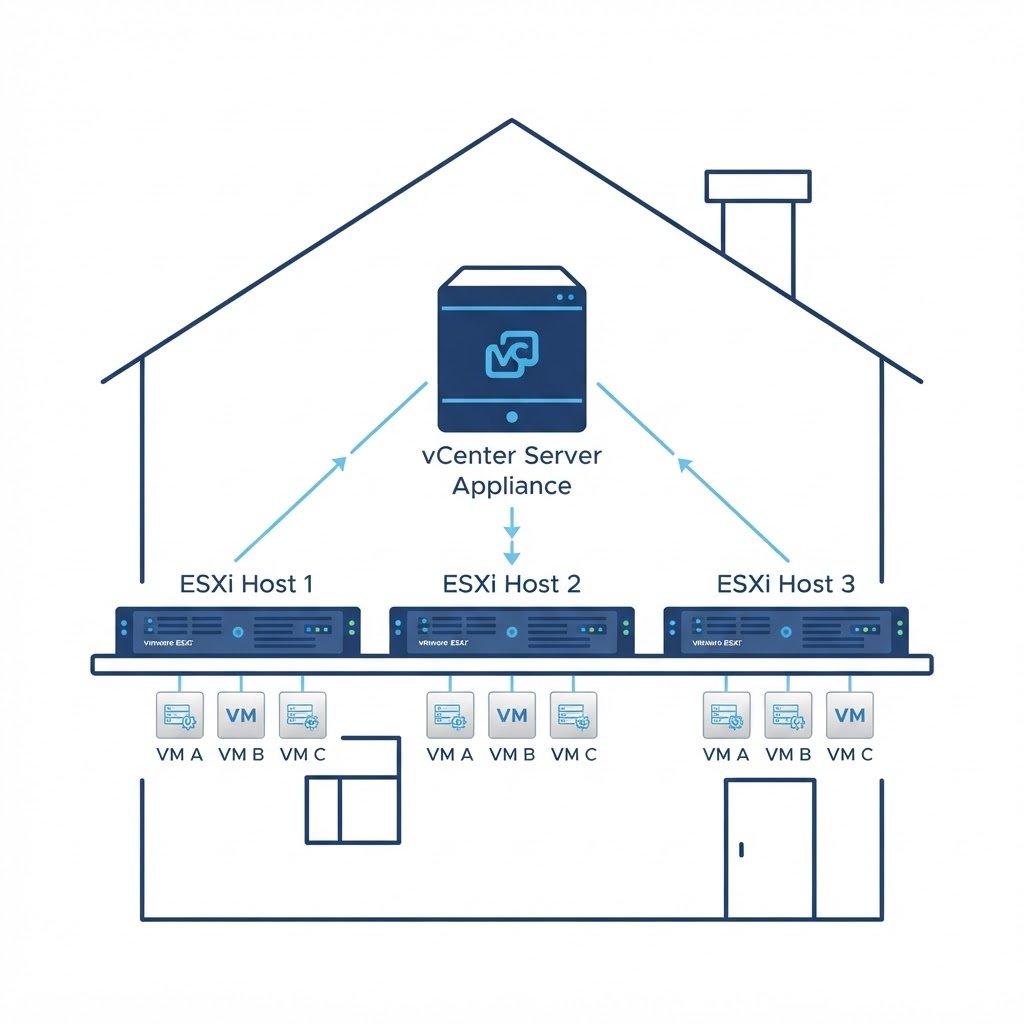
The vCenter Server Appliance (VCSA) is the management brain of a vSphere environment: a pre-built Linux VM that lets you manage multiple hosts, clusters, vMotion, HA and vSAN from one place. While a standalone ESXi host uses the Host Client, adding vCenter is what turns a home lab into a realistic data center.
dns LAB TOPOLOGY & PREREQUISITES
# example values used while writing and testing this guide
APPLIANCE SPECS
NETWORK
INSTALLER DESIGN
01constructionRequirements
- A running ESXi host with at least 8-10 GB RAM free for a tiny-scale VCSA
- An FQDN and IP plan for the appliance (static IP, DNS record, NTP working)
- The VCSA ISO downloaded from VMware (free evaluation license)
02downloadStage 1: Deploy the Appliance
Mount the ISO on your Windows PC and run the installer under the vcsa-ui-installer folder. Choose Install, accept the EULA and point the installer at your ESXi host and root credentials. Then: Because you install vCenter Server Appliance only once per lab, keep this guide bookmarked for the next rebuild.
- Set the VM name for the appliance and the root password for its operating system.
- Choose a deployment size (Tiny is fine for a lab) and the datastore where the appliance will live.
- Configure the network: static IP, subnet, gateway, DNS and the FQDN such as
vcenter.lab.local.
The installer copies the appliance to your host and boots it. This takes 10-20 minutes.
03usbStage 2: Set Up vCenter
Browse to the address the installer gives you (port 5480) to start stage two. Here you configure time sync, enable SSH if you want it, create the SSO domain (for example vsphere.local), set the administrator password and join the existing vCenter if you had one. When setup finishes, log in to the vSphere Client at https://vcenter-fqdn/ui with administrator@vsphere.local.
04terminalNext Steps After the vCenter Install
Create a datacenter object, add your ESXi host to the inventory, then explore clustering, vMotion migrations and role-based permissions. vCenter is also the prerequisite for HA, DRS and vSAN.
Watch: How to Install vCenter Server Appliance at Home
Because some steps are easier to copy from video, this companion walkthrough mirrors the lab above. Also, the chapter pills follow the same order as the steps.
Q&AquizFrequently Asked Questions About Installing vCenter Server Appliance
Do I really need vCenter for a home lab?
For a single host, the ESXi Host Client is enough. However, vCenter unlocks vMotion, clusters, permissions and templates, which is why it is worth learning.
How much RAM does the VCSA need?
Plan for at least 10 GB free on your host for the tiny deployment size. Anything less and the appliance struggles during setup.
What is the SSO domain for?
SSO is the built-in identity service. It gives you the administrator@vsphere.local login, so keep that password safe.
Does the evaluation license expire?
Yes, after 60 days. Afterwards you can register a free ESXi key for the host itself, while the VCSA evaluation covers the learning window.
EXTopen_in_newExternal Resources
These official guides go deeper on installing vCenter Server Appliance.
Related Content
- How to Install ESXi Server
- How to Migrate a VM Between Hosts Using vCenter
- How to Create a Virtual NAS Device
- How to Build a Home Lab
Migrate a VM Between Hosts (vMotion)
vCenter is live, so the natural next lab is vMotion. Then you can move running VMs with zero downtime.