When you create a virtual NAS device in an ESXi VM, you get shared storage for the whole lab without buying extra hardware. In addition, the same VM later doubles as an iSCSI or NFS target for vMotion practice.
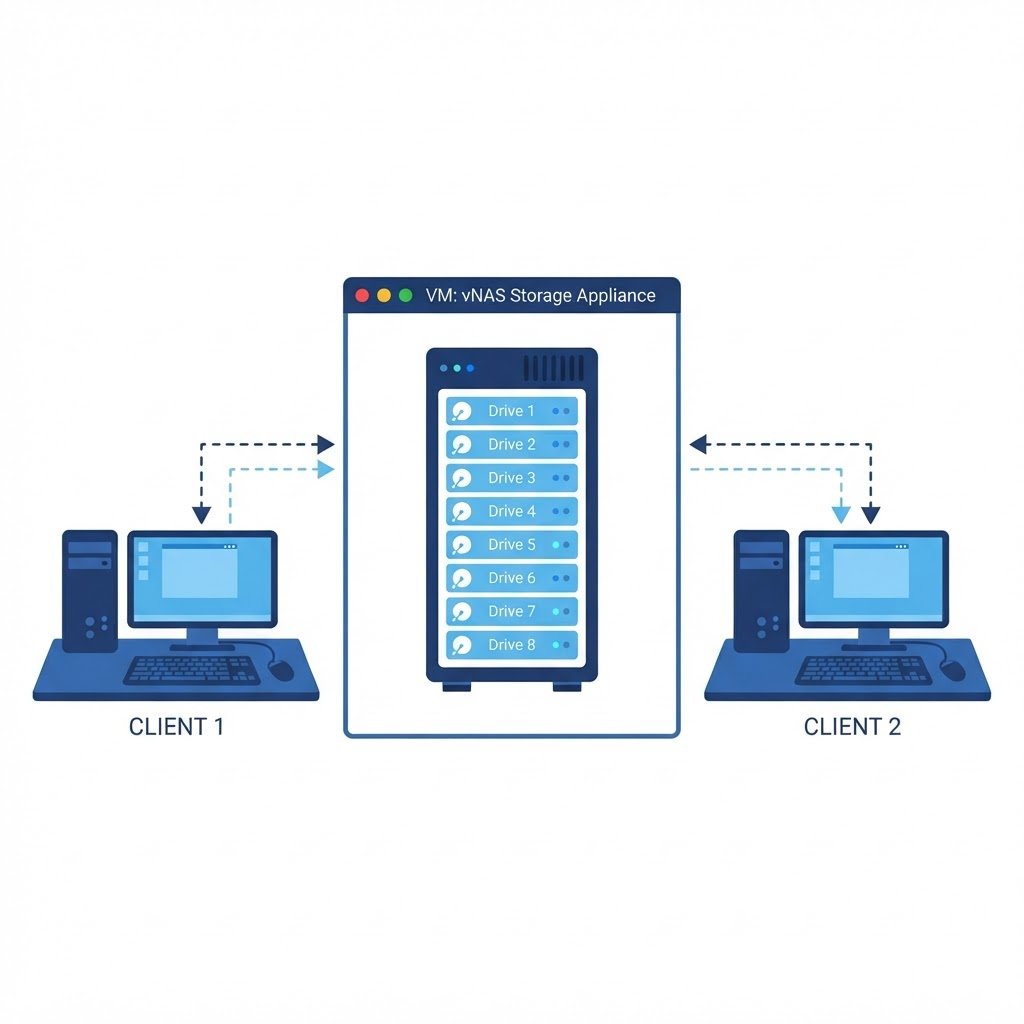
A NAS (Network Attached Storage) device serves files over the network. In a home lab, you do not need dedicated hardware: running TrueNAS (formerly FreeNAS) as a virtual machine on ESXi gives you NFS and SMB shares that ESXi and other VMs can use, which is exactly how shared storage is done in real data centers.
dns LAB TOPOLOGY & PREREQUISITES
# example values used while writing and testing this guide
NAS VM SPECS
NETWORK
STORAGE DESIGN
01constructionStep 1: Prepare the VM
Create a new virtual machine on your ESXi host for TrueNAS:
- Guest OS: Linux, Other 64-bit
- At least 8 GB RAM for ZFS (4 GB minimum), 2 vCPUs, and a 16+ GB boot disk
- An extra virtual disk of any size to hold the shared data
Download the TrueNAS ISO, upload it to your datastore, and attach it to the VM’s CD drive.
02downloadStep 2: Install TrueNAS
Boot the VM and follow the installer: choose the boot disk, set the admin password, and let it install. After reboot, the console shows the web UI address. Browse to it and log in with the admin account. Once you create virtual NAS device storage in the lab, every later tutorial can use it.
03usbStep 3: Create a Pool and a Share on the Virtual NAS Device
In the TrueNAS web UI, create a pool on the second (data) disk, then create a dataset and a share:
- NFS share: ideal for ESXi — allow the ESXi host’s IP and keep the share root-mapped
- SMB share: ideal for Windows machines and general file sharing
04terminalStep 4: Mount the Share in ESXi
Back on the ESXi host, go to Storage, add a NFS datastore, point it at the TrueNAS IP and export path, and the NAS appears as shared storage. Both a host and its VMs can now use it. A shared datastore like this is the key ingredient that makes vMotion possible later.
Watch: How to Create a Virtual NAS Device
Because some steps are easier to copy from video, this companion walkthrough mirrors the lab above. Also, the chapter pills follow the same order as the steps.
Q&AquizFrequently Asked Questions About Creating a Virtual NAS Device
Is TrueNAS the same as FreeNAS?
TrueNAS is the successor of FreeNAS. The two names describe one product family, so either one works for a home lab NAS.
Why run a NAS as a virtual machine?
Because a VM costs you nothing extra and still teaches shared storage. Moreover, it lets your ESXi host use real NFS datastores without buying hardware.
How much memory does TrueNAS need?
Plan for 8 GB at minimum, mainly because the ZFS file system keeps data in RAM. With less memory, performance drops noticeably.
Should I share with NFS or SMB?
Use NFS for ESXi and Linux clients, and use SMB for Windows machines. In practice, most home labs enable both, then restrict each share to the right subnet.
EXTopen_in_newExternal Resources
These official guides go deeper on creating a virtual NAS device.
Related Content
- How to Create a Datastore in ESXi Server
- How to Install vCenter Server Appliance
- How to Build a Home Lab
Create a Datastore in ESXi
The NAS is serving storage, so connect it to ESXi next. Then the hosts can share one datastore.