Changing Hyper-V VM settings the right way avoids slow VMs and broken networking later, so this guide walks through each settings page. For example, the difference between dynamic and static memory trips up many beginners.
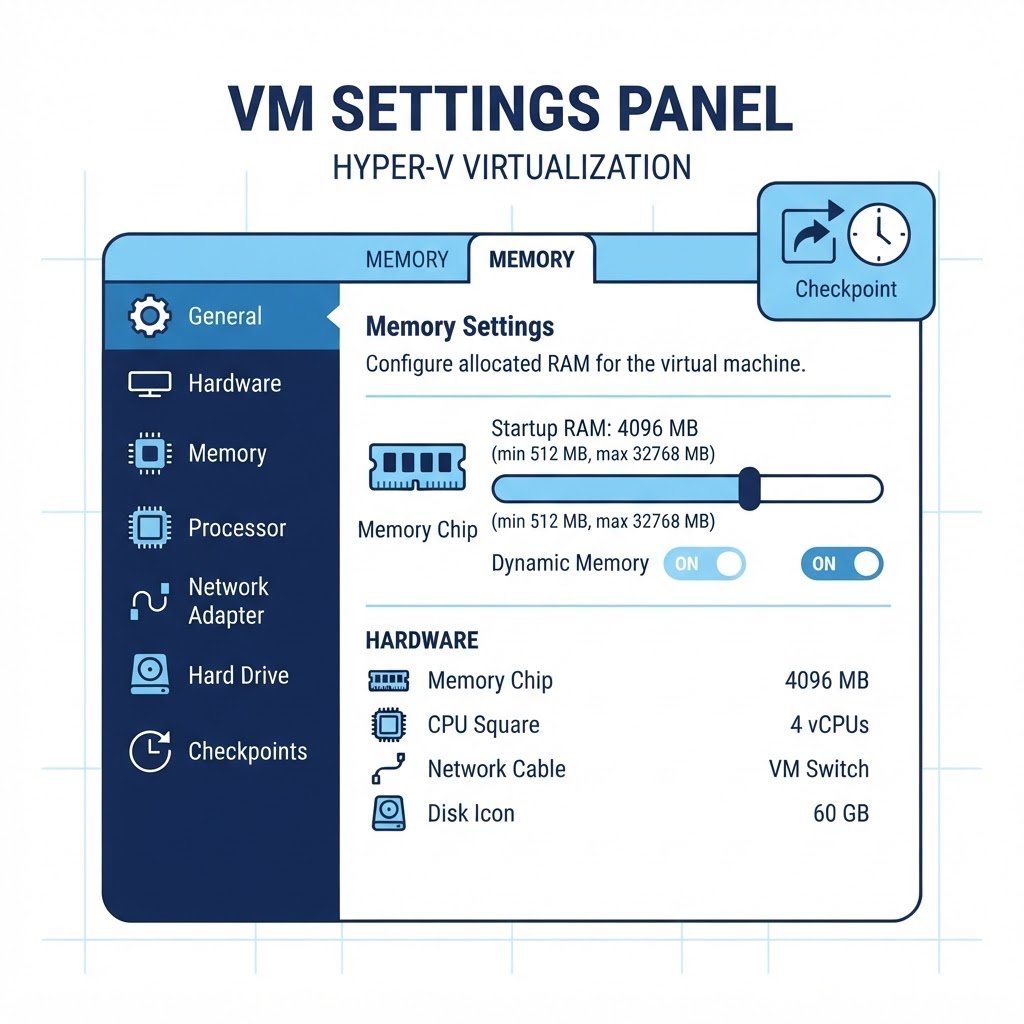
Getting the most out of Hyper-V means understanding the settings on the VM Settings page — because every one of them maps to a real performance or management trade-off. This guide walks through each section with the values that matter for lab and light production use.
dns LAB TOPOLOGY & PREREQUISITES
# example values used while writing and testing this guide
LAB VM
WINDOWS BUILD
VALIDATION
01constructionPrerequisite
You need Hyper-V installed with at least one VM — see How to Install and Configure Hyper-V in Windows Server 2016 if you have not set it up yet.
02downloadMemory: Static vs Dynamic
The Memory section offers startup RAM plus optional dynamic memory. Dynamic memory lets the hypervisor add RAM to a VM between a minimum and maximum while it runs — great for consolidation on a host with many small VMs. Give database and domain-controller VMs fixed memory for predictable performance. If a VM “will not start” with a low RAM error, the startup value is usually the culprit.
03usbProcessor Settings
Set the number of virtual CPUs (never more than the host’s logical core count), and optionally cap CPU percentage and reserve host resources. For labs, 1-2 vCPUs per machine is plenty. Watch resource usage under host Task Manager while VMs run before deciding to add more.
04terminalNetwork Adapters
Attach each VM’s adapter to a virtual switch. Options: Default Switch (NAT to the host, easiest), External (bridged to your LAN via a host NIC), Internal/Private (isolated lab networks). Add a second adapter when a machine must sit on two networks — the same pattern as the ESXi data-network exercise. Use the newer “Network Adapter” type (not Legacy) and check VLAN ID if you tag traffic.
05settings_ethernetHard Drives and Checkpoints
VM disks are VHDX files. Choose dynamic (grows on demand — good for lab space saving) or fixed (pre-allocated — better steady-state performance). Under Management → Checkpoints, enable automatic checkpoints if you want one taken at every boot; under Checkpoints in Hyper-V Manager you take and restore them manually. Also enable all Integration Services (heartbeat, backup, time sync) unless you have a reason not to.
With settings under control, the natural next step is installing Windows Server into the VM or installing Ubuntu.
Watch: How to Install Hyper-V Manager and Manage Virtual Machines
Because some steps are easier to copy from video, this companion walkthrough mirrors the lab above. Also, the chapter pills follow the same order as the steps.
Q&AquizFrequently Asked Questions About Hyper-V VM Settings
When should I use dynamic memory?
Use it for many small VMs that share one host. However, give domain controllers and database servers fixed memory, because their performance depends on stability.
Which virtual switch type should I pick?
Default Switch gives easy internet access through NAT. External bridges VMs onto your LAN, while Internal keeps traffic between host and VMs only.
Is a dynamic VHDX slower than fixed?
Slightly, during writes that grow the file. For learning, dynamic disks save so much space that the trade-off is worth it.
How are checkpoints different from backups?
Checkpoints are quick local restore points, not copies kept elsewhere. Therefore, keep real backups separately, as with the home lab guide‘s snapshot discipline.
EXTopen_in_newExternal Resources
These official guides go deeper on Hyper-V VM settings.
Related Content
- How to Install and Configure Hyper-V in Windows Server 2016
- How to Install Windows Server 2016 in a Virtual Machine
- How to Install Ubuntu in VMware Workstation
How to Put Two Virtual Machines in the Same Network in ESXi
Finish this lab, then continue down the track. Each guide builds on the one before it.