Installing Windows by hand on hundreds of machines does not scale. The answer is deployment imaging: build one perfect reference machine, capture it, then push it everywhere. This guide shows how to create, manage and maintain deployment images in Windows Server 2016 with MDT (Microsoft Deployment Toolkit), WDS (Windows Deployment Services) and DISM.
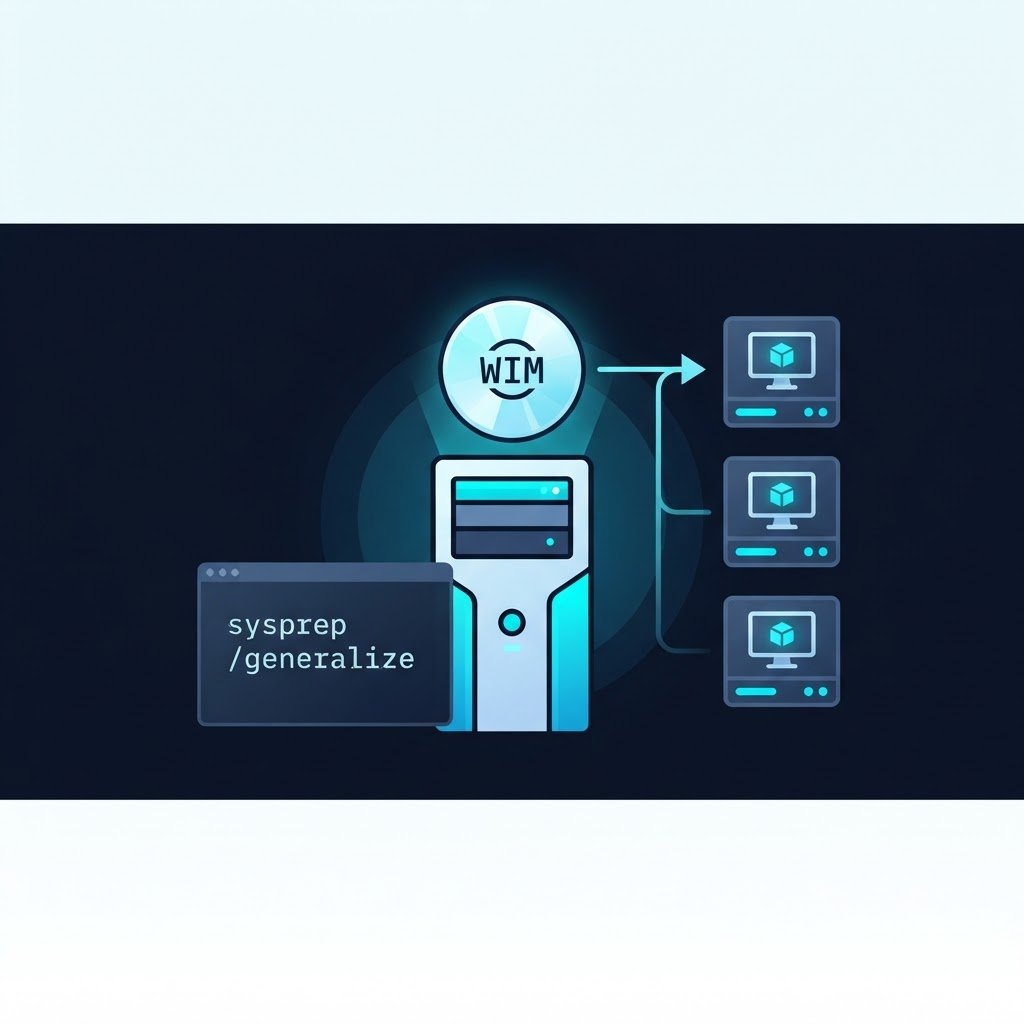
Step 1: Build a Reference Machine
First, build one VM or PC with everything a standard machine needs: OS, patches, applications, configuration. Join nothing to the domain — you want it domain-free. Before capture, run sysprep /generalize /oobe /shutdown to strip machine-specific information (SIDs, drivers binding, activation) so the image can deploy anywhere. As a result, one build later serves laptops, towers and VMs alike.
Step 2: Capture Deployment Images with MDT/WDS
MDT is the free, scriptable workhorse: create a deployment share, add your OS, drivers and applications, and generate a capture task sequence. Then boot the reference machine from the MDT boot media and let it capture to a WIM file. WDS then serves your deployment images over the network: with PXE boot enabled, new physical machines install themselves straight from the deployment server without any USB media.
Step 3: Service the Image Offline
Images drift out of date as patches arrive. However, instead of rebuilding the reference every month, mount and update the WIM offline, so the deployment images stay current without a rebuild:
dism /Mount-Wim /WimFile:install.wim /Index:1 /MountDir:C:\mount
dism /Image:C:\mount /Add-Package /PackagePath:msu-file
dism /Unmount-Wim /MountDir:C:\mount /Commit
The same DISM flow adds drivers, language packs and features to a captured image without ever booting it.
Step 4: Deploy and Maintain
Finally, deploy the deployment images via WDS (or MDT task sequences) to new machines, and keep a changelog: reference image version, patch level, driver versions. In addition, document each build, so any team member can trace a machine back to its source image. Rebuild the reference image on a schedule (quarterly is typical) so new deployments are not patching for hours on first boot.
Maintaining Deployment Images Over Time
Meanwhile, treat the image library like code. For example, tag each WIM with build date, patch level and driver set, then archive the previous build before capturing a new one. As a result, maintaining deployment images becomes routine instead of an emergency.
Related Content
- How to Install and Configure Hyper-V in Windows Server 2016
- How to Install Windows Server 2016 in a Virtual Machine
- How to Build a Home Lab