This guide shows how to configure disks and volumes Windows Server step by step, with every setting in the order you will use it. Before a disk can hold data, Windows must bring it online, initialize it and create volumes on it. This is bread-and-butter server administration — and the first skill every lab exercise involving storage needs. This guide covers Disk Management and PowerShell for Windows Server 2016.
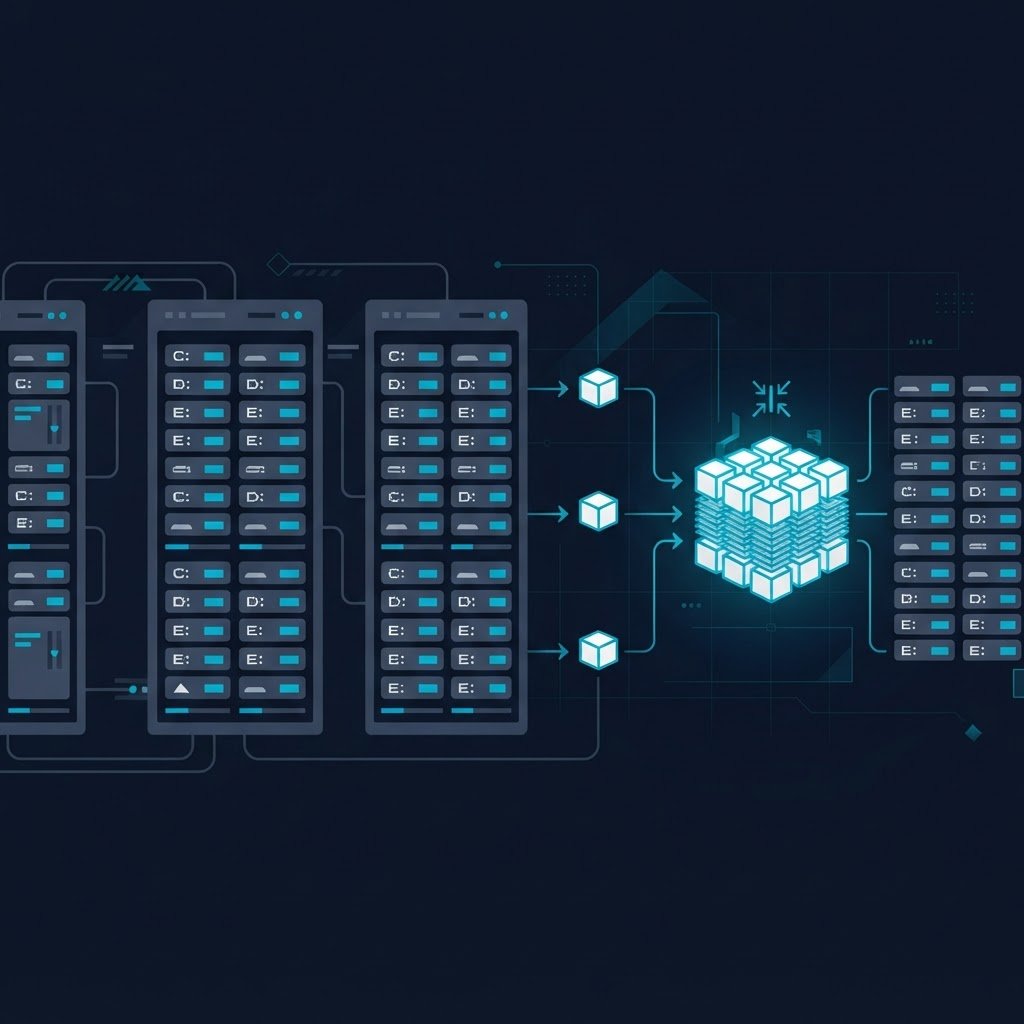
dns LAB TOPOLOGY & PREREQUISITES
# example values used while writing and testing this guide
LAB VM
WINDOWS BUILD
VALIDATION
01constructionConfigure disks and volumes: Step 1: Bring the Disk Online
Attach a new disk (physically, or add a virtual disk to your VM in Hyper-V settings). Open Disk Management (Server Manager → Tools). New disks show as Offline; right-click the disk number and choose Online, then Initialize Disk.
02downloadMBR or GPT?
Initialization asks for a partition style: In short, to configure disks and volumes reliably, follow the order above and verify each step.
- GPT — the modern choice: volumes over 2 TB, up to 128 partitions, redundancy in the partition table. Use GPT unless you need to boot a legacy BIOS system from this disk.
- MBR — the legacy style: 2 TB limit, 4 primary partitions. Only for compatibility.
03usbStep 2: Create and Format a Volume
Right-click the unallocated space → New Simple Volume: choose size, a drive letter (or a mount point in an NTFS folder), and format. Choose NTFS for general use; ReFS for large, resilient data volumes; and set a meaningful volume label like Data01. PowerShell equivalent:
New-Partition -DiskNumber 2 -UseMaximumSize -AssignDriveLetter | Format-Volume -FileSystem NTFS -NewFileSystemLabel "Data01"
04terminalStep 3: Resize and Maintain
Extend a volume when its disk gains space: right-click the volume → Extend Volume (the free space must follow the volume on the same disk — otherwise extend is greyed out). Shrink works only if the file system allows relocating data from the tail. Both operations are online; users keep working. For anything fancier — pooling, resiliency across disks, tiers — you graduate to Storage Spaces.
05settings_ethernetLab Tips
- Practice on VM disks, not your host’s real disks
- Get in the habit of labeling volumes by purpose, not “New Volume”
- Check alignment: modern partitions align automatically; tools like
Get-Partitionshow offsets
Once volumes exist, natural next steps are file shares, deduplication and backups. In short, to configure disks and volumes reliably, follow the order above and verify each step.
Related Content
How to Implement Server Storage in Windows Server 2016 (Storage Pools and Spaces)
Finish this lab, then continue down the track. Each guide builds on the one before it.