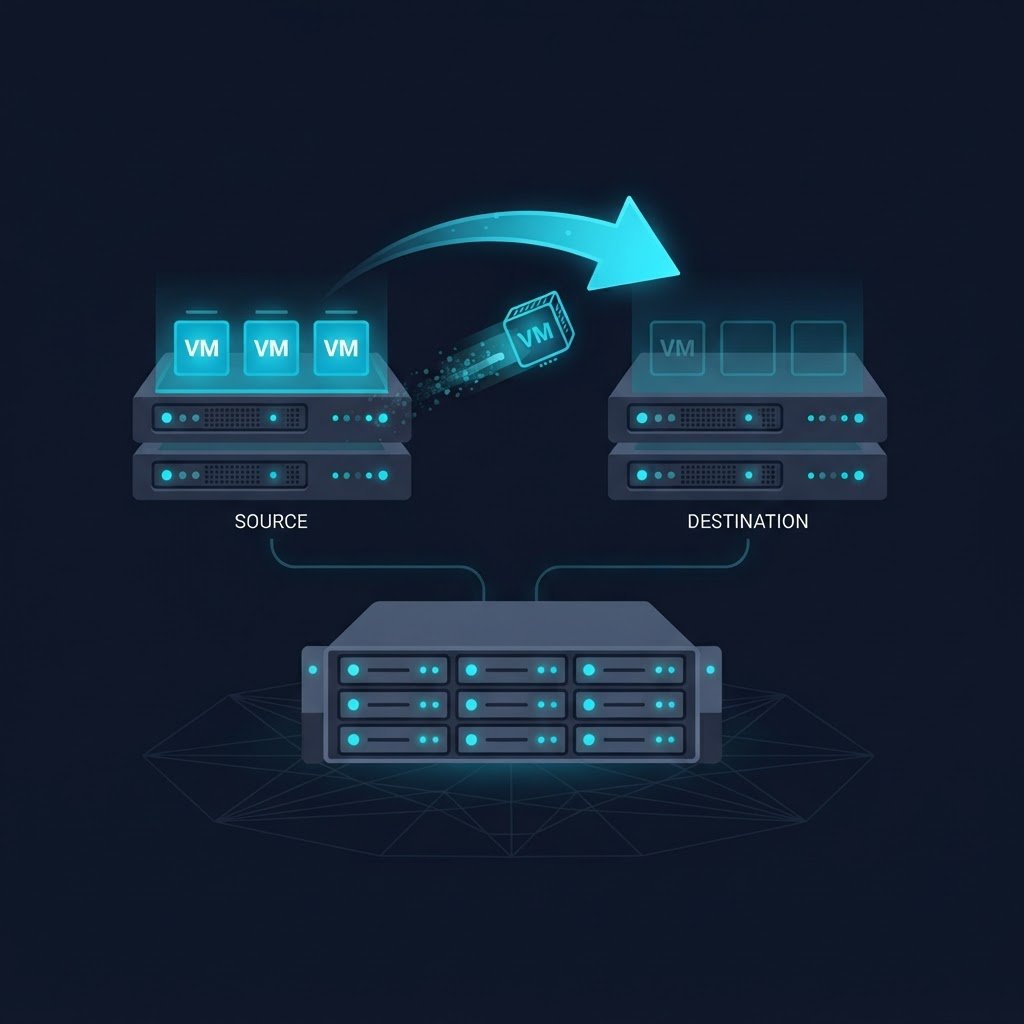
vMotion lets you move a running virtual machine from one ESXi host to another without powering it off and with no noticeable downtime. It is one of the most impressive vSphere features to demonstrate in a home lab, and it is exactly what keeps enterprises running during host maintenance.
dns LAB TOPOLOGY & PREREQUISITES
# example values used while writing and testing this guide
HOSTS
VMOTION NETWORK
VM UNDER TEST
01constructionBefore You Migrate VM Between Hosts
- Two or more ESXi hosts managed by vCenter Server
- A shared datastore (NFS, iSCSI or vSAN) visible to both hosts — a virtual NAS device works well in a lab
- VMkernel ports enabled for vMotion on both hosts, on the same layer-2 network
- Compatible CPUs between the hosts (or EVC mode enabled in the cluster)
- Virtual machine hardware version compatible with both hosts
02downloadStep 1: Verify Compatibility
In the vSphere Client, check that the destination host has enough CPU, memory and network capacity, and that both hosts see the same datastore. If your hosts have different CPU generations, enable Enhanced vMotion Compatibility (EVC) on the cluster so VMs can move freely. When you migrate VM between hosts again later, the compatibility check will already be familiar.
03usbStep 2: Start the Migration Wizard
Right-click the virtual machine in the vCenter inventory and choose Migrate. Select Migrate only compute resources (change host), pick the destination host from the list, and review the validation checks vCenter performs automatically.
04terminalStep 3: Watch the vMotion
Confirm and watch the task bar: vCenter pre-copies the VM’s memory to the destination host, briefly stun the VM, switch it over, then cleans up. The whole process usually takes seconds to minutes, and the VM never stops running. During maintenance you can also combine this with migrating storage or moving VMs into and out of maintenance-mode hosts.
05settings_ethernetStep 4: Verify
After migration, confirm the VM now shows the new host in the Summary tab, keep pinging the VM from another machine during the move to prove there was no downtime, and check the hosts’ task history for warnings.
Related Content
Create a Virtual NAS Device (TrueNAS)
The vCenter track is done. Next, build shared storage with TrueNAS, because vMotion works best on shared datastores.