This guide shows how to install Kali Linux step by step, with every setting in the order you will use it.
dns LAB TOPOLOGY & PREREQUISITES
# example values used while writing and testing this guide
LAB VM
ATTACK VM
TARGETS
01constructionInstall Kali Linux: Download Installer Image
Download Kali Linux installer image (64-bit) iso file and save it to your local drive (Do not store the iso image online such one drive or google drive). Please note the location where you save the installer image.
02downloadCreate a Virtual Machine
To Create a Virtual Machine, start VMware Workstation Pro and select New Virtual machine from it’s menu. Then, select Custom, as shown below, and go Next.

Next, select Workstation 16.x for hardware compatibility, as shown below, and go Next.
After that, confirm the highlighted setting before the next step.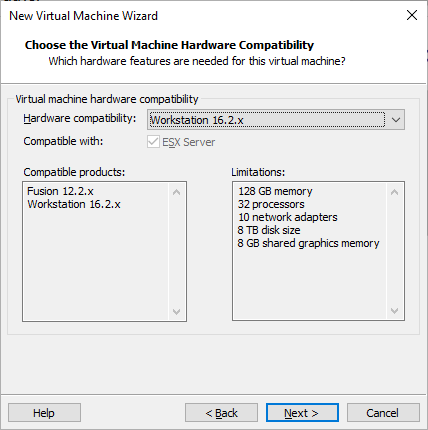
After that, select I will install the operating system later, as shown below, and go Next.

Meanwhile, select Linux for Guest operating system and Other Linux 5.x krnet64-bit for version and, as shown below, and go Next.
However, if your console wording differs, match the highlighted setting instead of the exact label.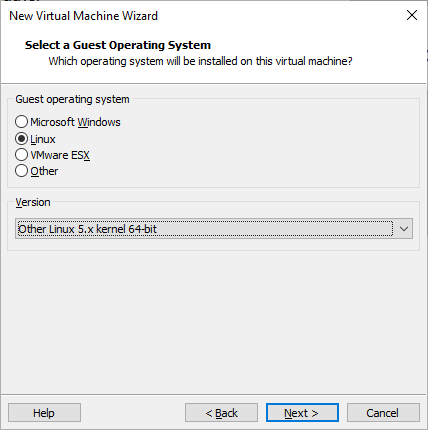
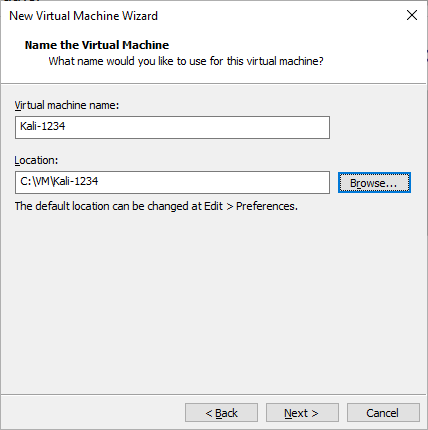
Then, type in a name for the VM and create/select a new folder for the location, as shown below, and go Next.
Then, select 4 processors, as shown below, and go Next.
Besides that, a screenshot below shows exactly where the option lives.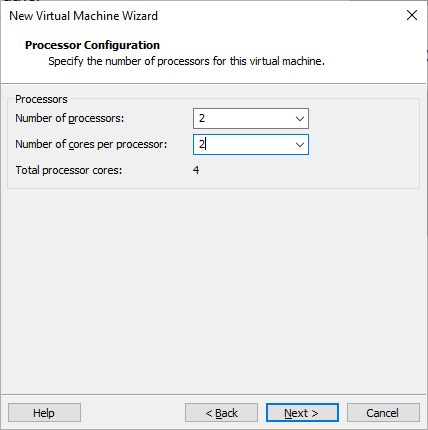
Then, select NAT for network connection, as shown below, and go Next.

Then, select the recommended LSI Logic, as shown below, and go Next.
Meanwhile, keep the default values unless the lab says otherwise.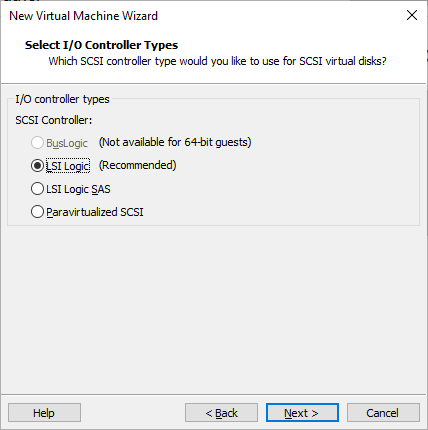
Then, select the recommended virtual disk type, as shown below, and go Next.
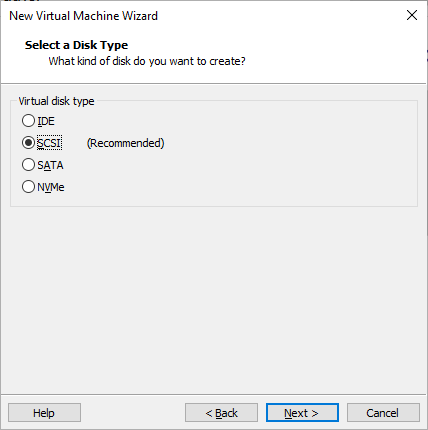
Then, select Create a new virtual disk, as shown below, and go Next.
In addition, double-check the region selector at the top of the console.
Then, select store virtual disk as a single file, as shown below, and go Next.

Then, keep the disk file name as recommended (or change it, if you wish), as shown below, and go Next.
Therefore, take a snapshot or a checkpoint before you continue.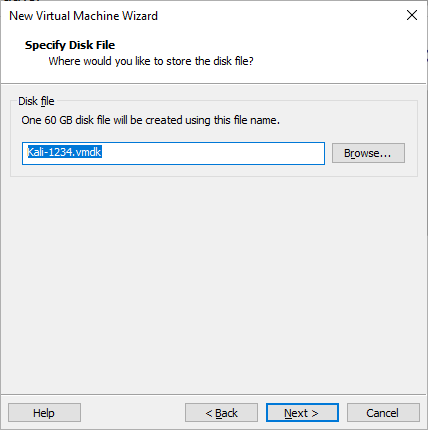
Then, check the summary of the VM, as shown below, and click on Finish.

The virtual machine will look like something as shown below.
After that, confirm the highlighted setting before the next step.
Then mount the downloaded Kali Linux installer iso image from you local storage to the CD/DVD drive and press OK.
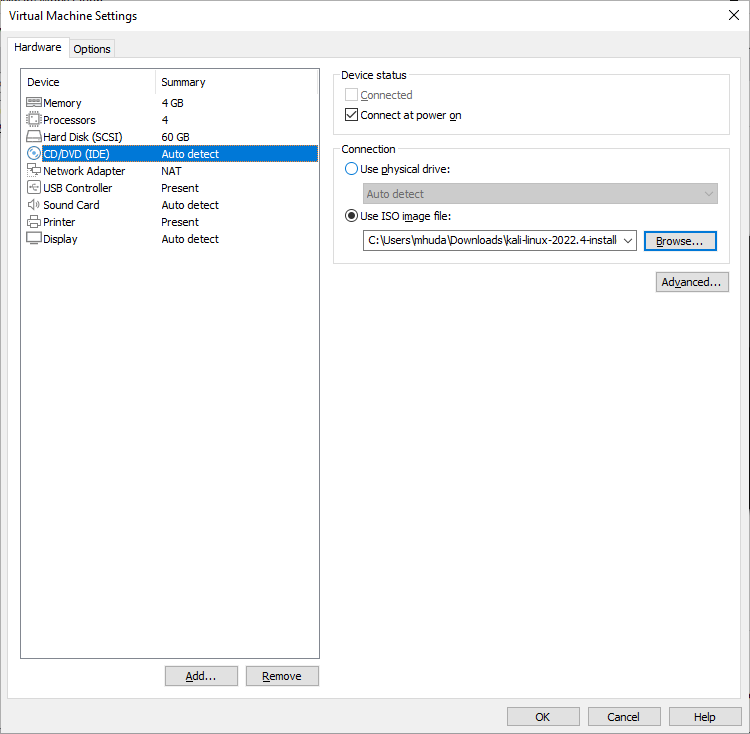
Power on the Machine, it should start the installation process.
In short, to install Kali Linux reliably, follow the order above and verify each step.
03usbInstall Kali Linux
When you power on the virtual machine (with installer iso image mounted), Kali Linux installation wizard starts. Select Graphical Install from the installation options.
However, if your console wording differs, match the highlighted setting instead of the exact label.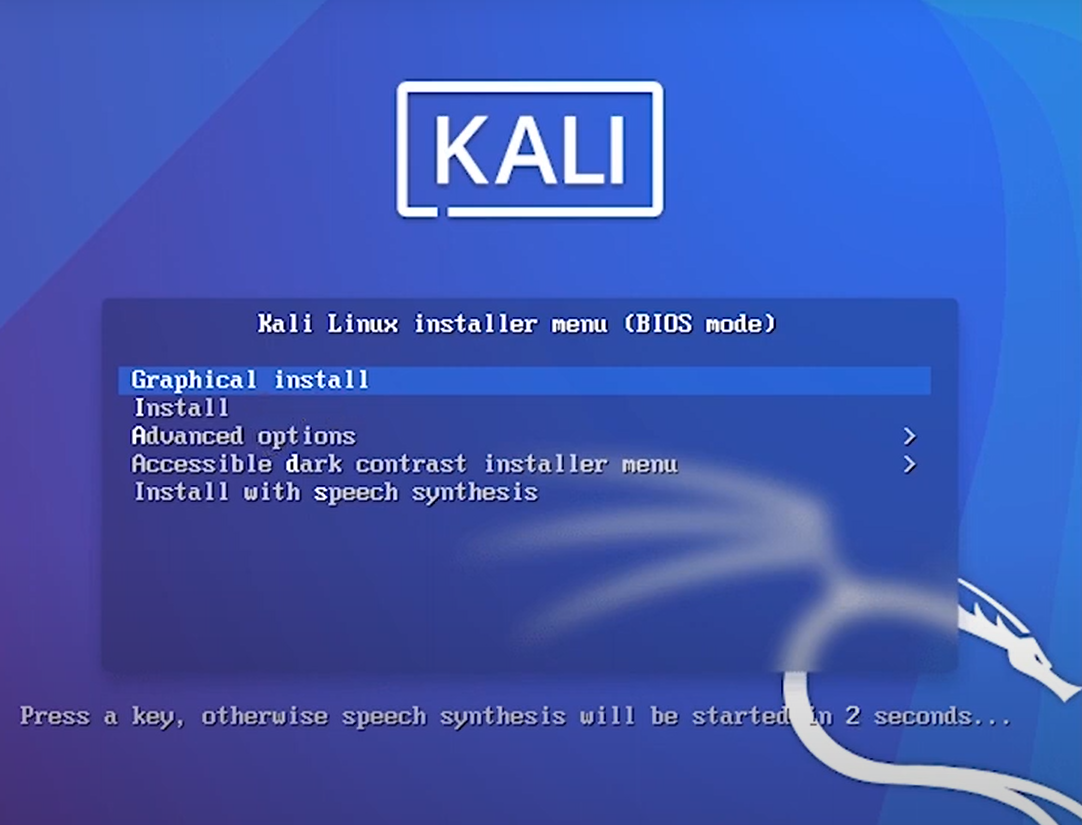
Select language, location and keyboard in the next three steps.
Type in hostname (computer name) and leave the domain name empty in next 2 steps.
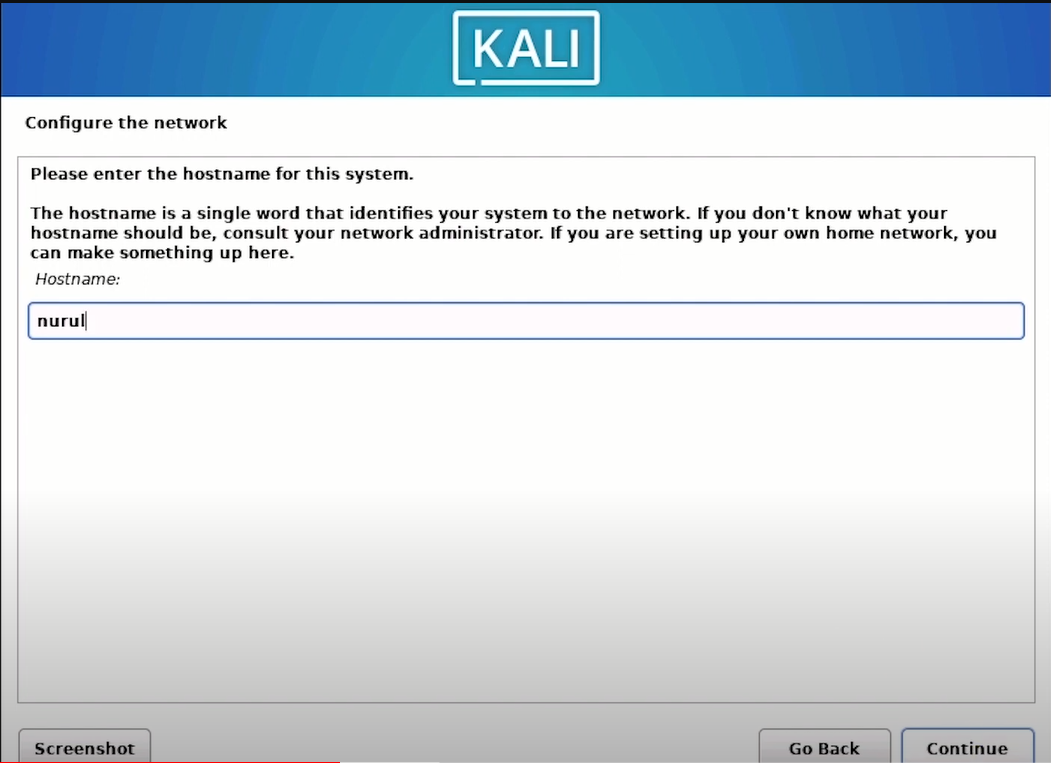
In the next two steps, set a username and password for the OS.
Besides that, a screenshot below shows exactly where the option lives.

Next, configure the clock.
For partition disk, use “Guided – user entire disk” and “All files in one partition”.
Meanwhile, keep the default values unless the lab says otherwise.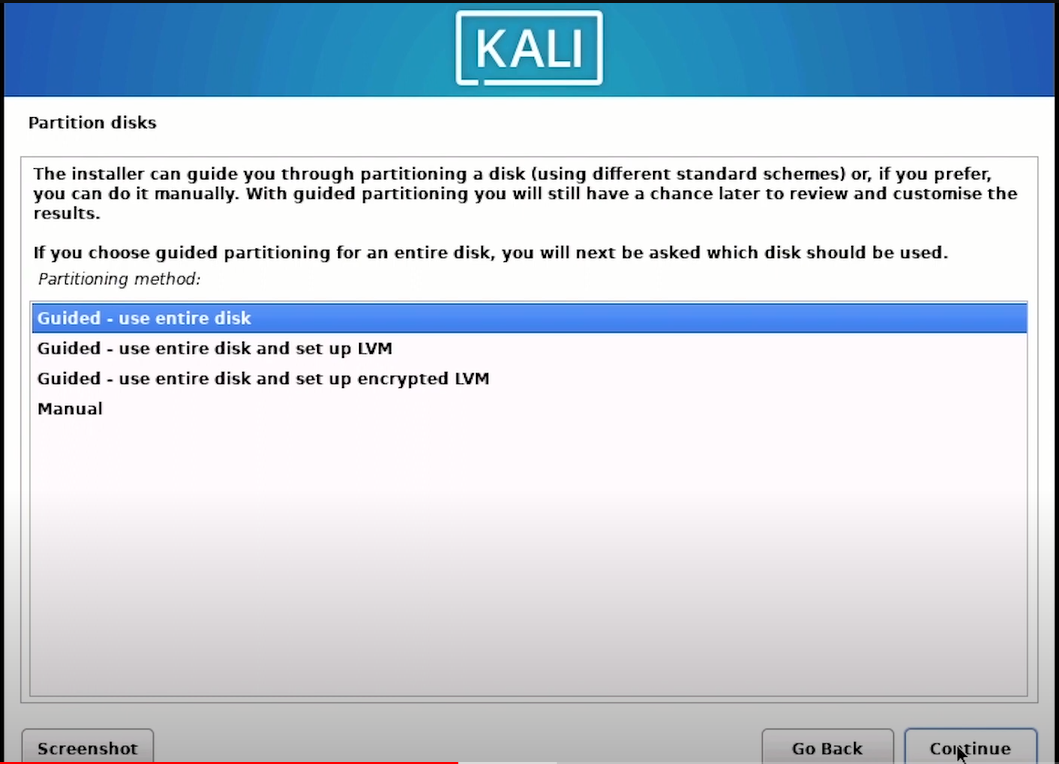

Leave the default in next step and select “Yes” for Write the changes to disk option.
In addition, double-check the region selector at the top of the console.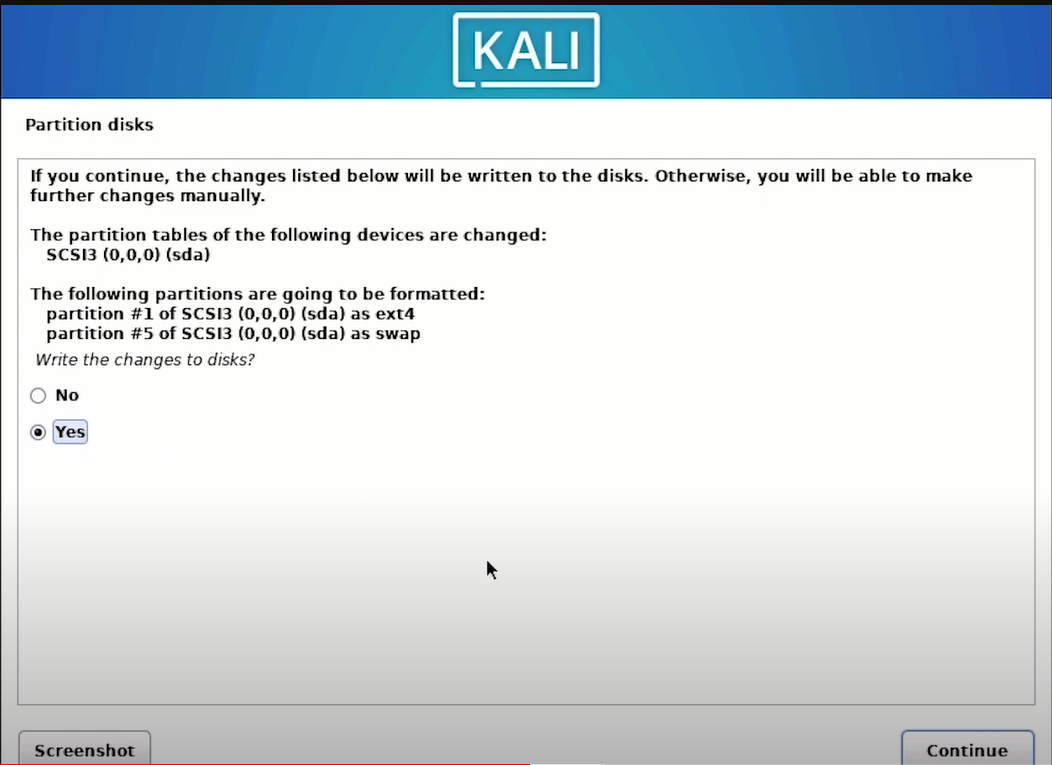
Installation progresses.
Select the software.

Installation progresses.
Therefore, take a snapshot or a checkpoint before you continue.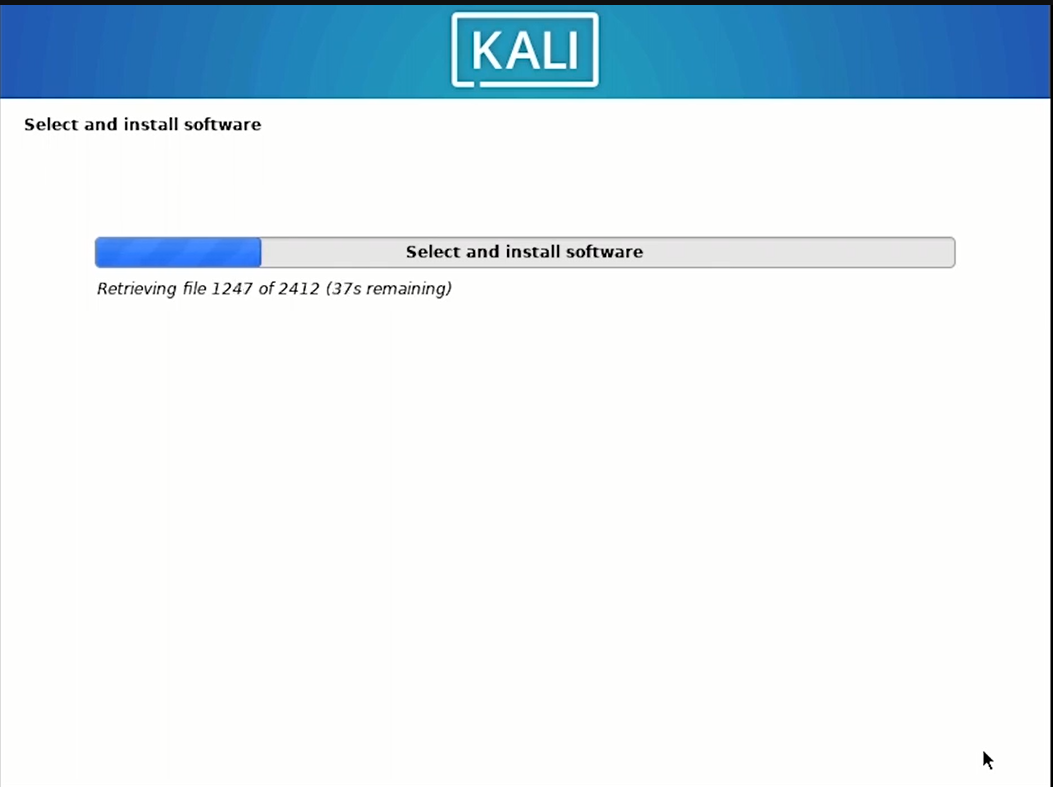
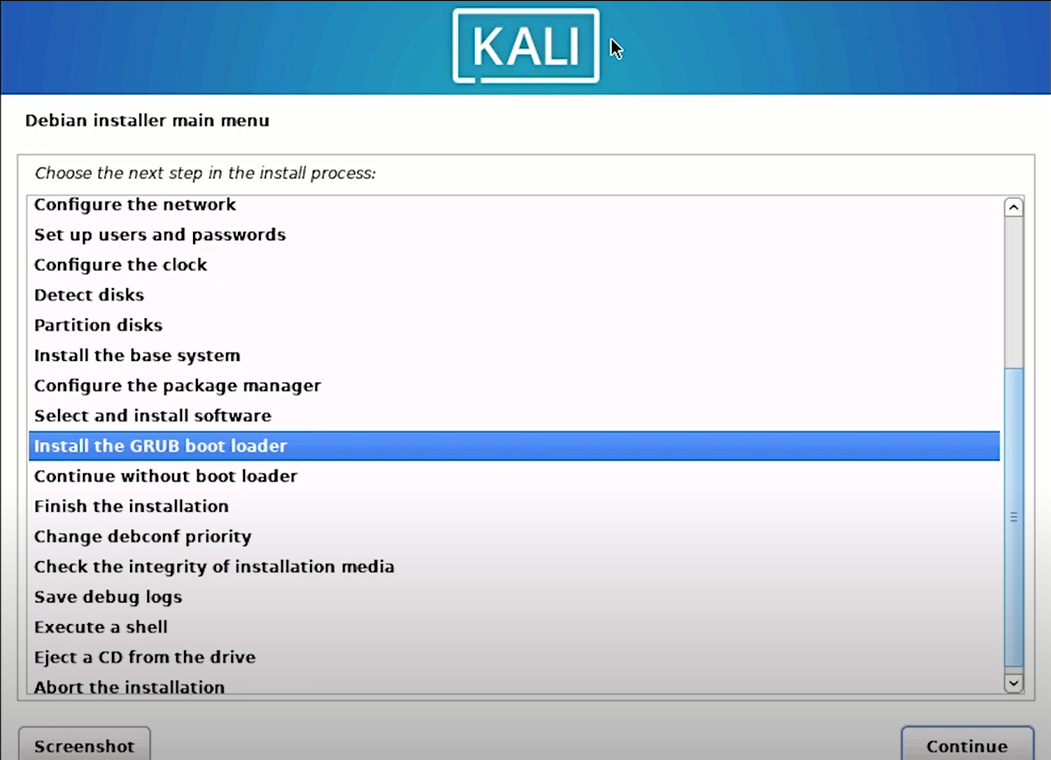
Select “Install the GRUB boot loader”
Leave the default in the next step and select “/dev/sda” for device for GRUB boot loader.
After that, confirm the highlighted setting before the next step.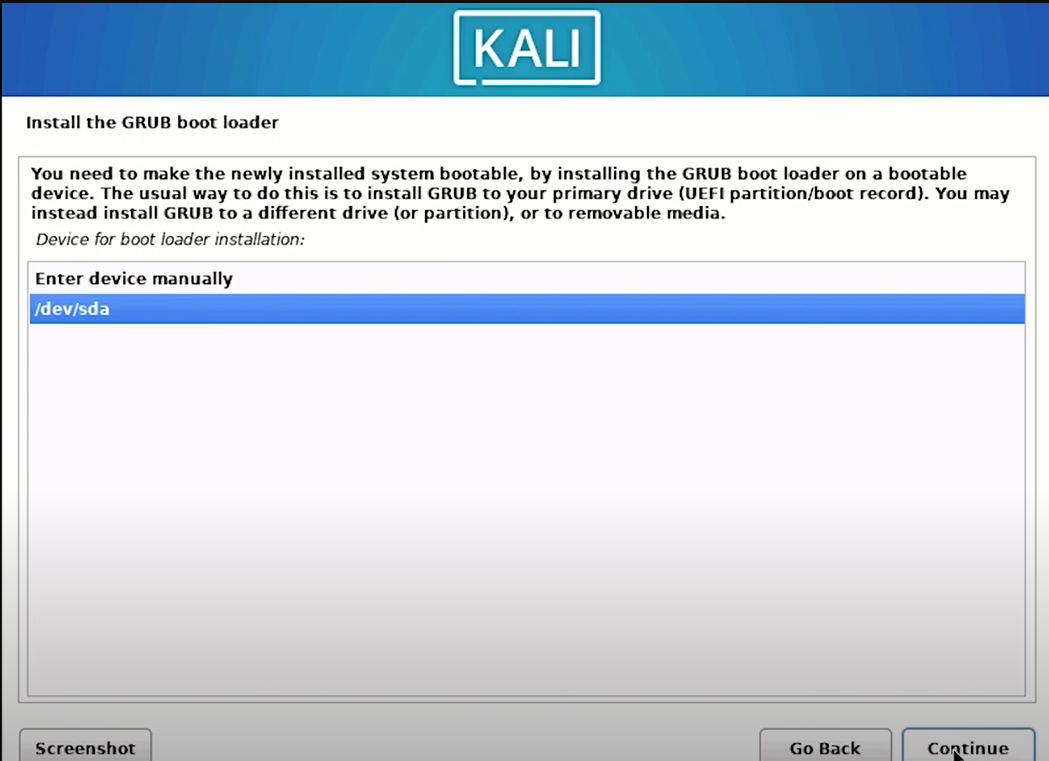
The system will reboot when the installation is complete.

At the login prompt, login with your username and password that you created earlier.
However, if your console wording differs, match the highlighted setting instead of the exact label.
Open the terminal and update and upgrade the system by using “sudo apt update” and “sudo apt upgrade” commands
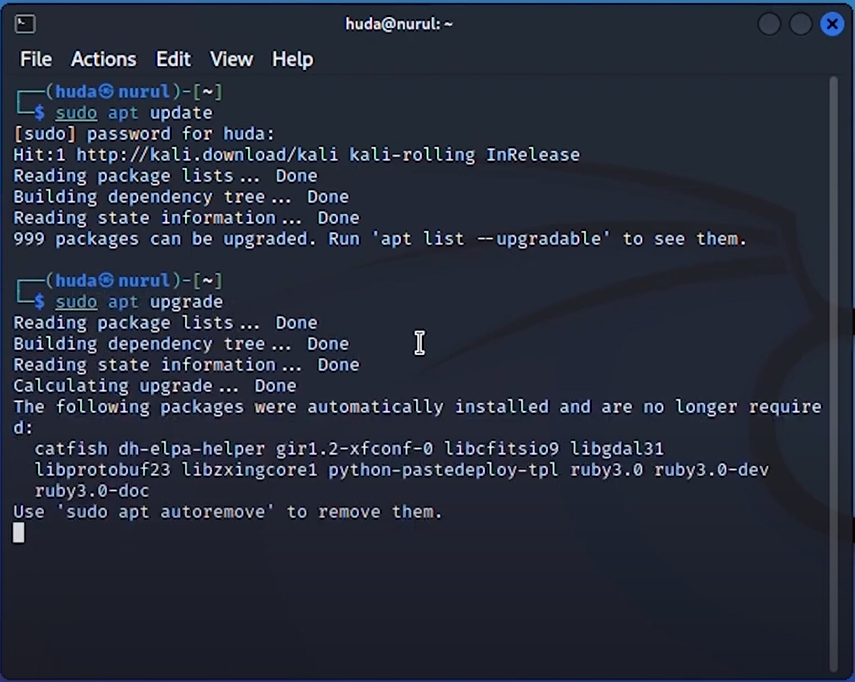
Finally, remove unnecessary packages by using “sudo apt autoremove” command.
Besides that, a screenshot below shows exactly where the option lives.
Thank you for vising the instruction page.
In short, to install Kali Linux reliably, follow the order above and verify each step.
CompTIA Security+ Lab 01: Installing Kali Linux and Windows 10
Finish this lab, then continue down the track. Each guide builds on the one before it.